
Data profiles are a predefined set of filters for a set purpose, helping users to easily find records for their set use case.
When completing a new occurrence search on the NBN Atlas and viewing the occurrence records, a default data profile will be applied.
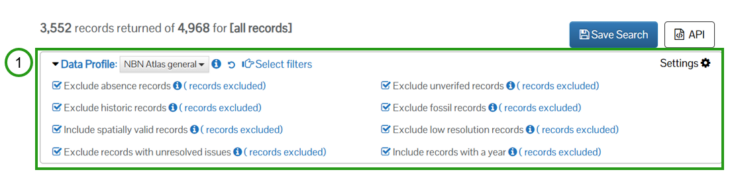
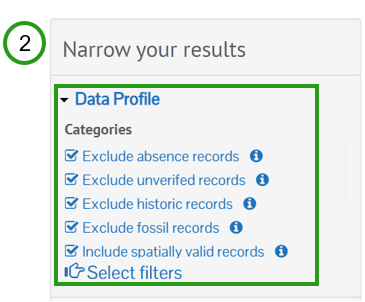
You can see and explore the filter categories (group of related filters) being applied in two areas on the occurrence search page, via the dedicated Data Profile panel (1) or within the Narrow you results panel under the Data Profile section (2)
There are a selection of data profiles to choose from
The default NBN Atlas general data profile will apply the following filters to the occurrence search (the filter categories):
-
Exclude absence records
-
Excluded unverified records – records with identification verification status ‘Unconfirmed’, ‘Unconfirmed – plausible’, and ‘Unconfirmed – not reviewed’
-
Exclude historic records, predating 1900
-
Exclude records with no processed year
-
Exclude fossil specimen records
-
Only include records with location information supplied
-
Exclude records with a spatial uncertainty higher than 10km (e.g., 50km or 100km grid reference). But not excluding sensitive species records which have been generalised on the NBN Atlas according to the sensitive species lists.
-
Exclude records with unresolved issues flagged by NBN Atlas users, e.g., records with the user assertion status ‘issue not yet reviewed by the data provider’
You are informed of the number of occurrence records being excluded from your search (3).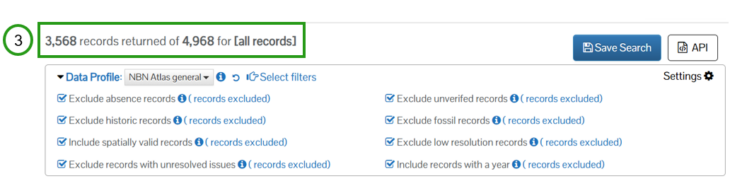
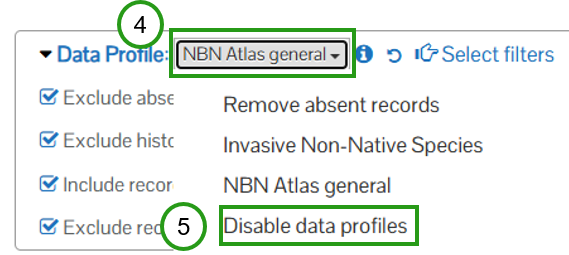
There are other data profiles to select from (4):
- Remove absent records – removes records with the occurrence status “Absent”, this was the default filter applied to all searches pre-data profiles. This filter is still applied when viewing records via species pages, the Regions portal, and the explore your area search.
- Invasive Non-Native Species [this profile is temporarily disabled] – this filter includes the same filter categories as the NBN Atlas general profile. With the exception of the Except unverified records filter category, as unverified records may still be important when assessing INNS records. The profile also includes another filter category, INNS species lists. This includes the following lists:
-
Invasive species of special concern (applies to England, Wales, and Scotland)
-
UK Biodiversity Indicator Invasive Species – JNCC (applies to England, Wales, and Scotland)
-
If you want to disable data profiles and specify your own set of filters, click on the data profile drop down (4) and click on Disable data profiles (5)
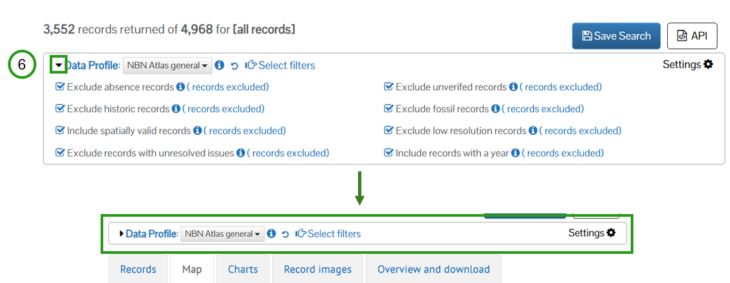
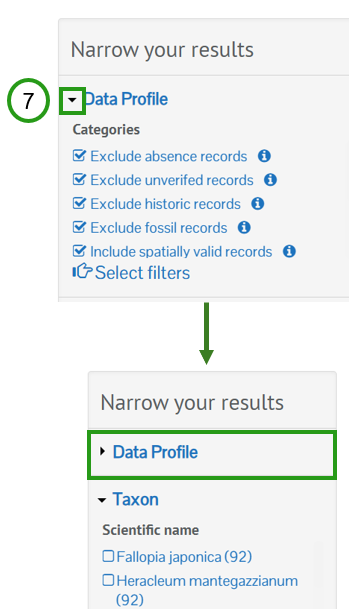
If the filters applied are suited for your needs but you don’t want to see all the filter categories, you can collapse the Data Profile panel (6) and Data Profile section in the Narrow your results panel (7)
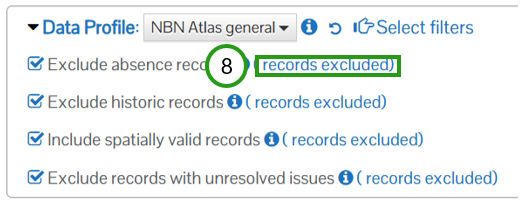
You can also view the records being excluded by a selected filter category by clicking on the records excluded link next the filter category’s name (8).
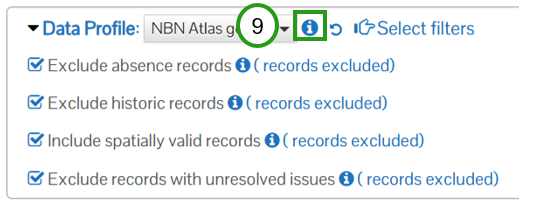
For more information on a data profile, e.g., a data profile’s description, contact information for queries/help, all filters applied by the profile etc., click the information icon next to the data profile drop down (9)
To view more information on a single filter category, e.g., Exclude unverified records, click on the information icon next to the filter category name (10) or (11)
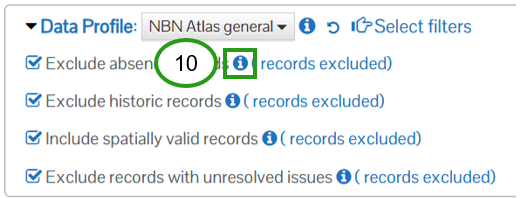
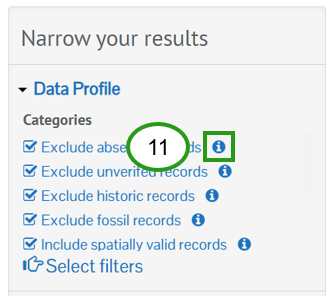
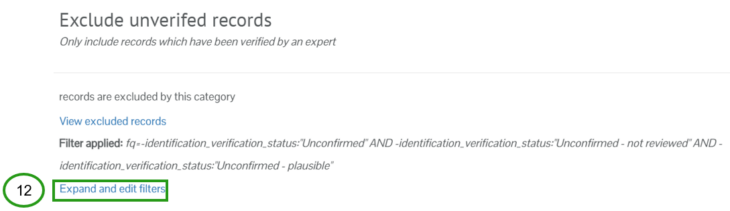
From here you can also disable filters within a filter category by clicking on the Expand and edit filters link (12), for example if you want to exclude records with an ‘Unconfirmed’ or ‘Unconfirmed – not reviewed’ verification status but want to include records with the ‘Unconfirmed – plausible’ status
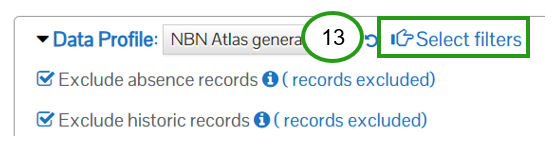
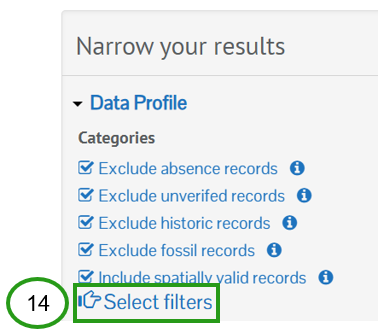
You can expand and edit filters for multiple categories at once by clicking on Select filters (13) or (14)
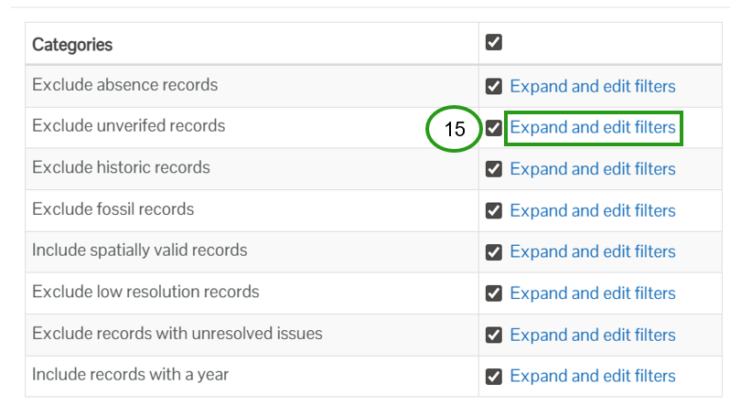
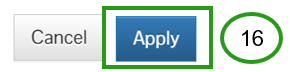
Click on the Expand and edit filters link (15) for the filter categories you would like to edit and then Apply (16).
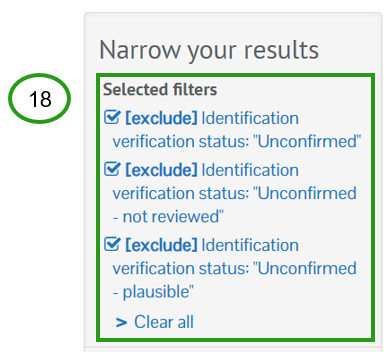
This disables the filter category and applies the filters individually to your search rather than as a group of filters, allowing you to remove those you don’t need. The filters will be shown in the Selected filters panel (17) and under the Selected filters section in the Narrow your results panel (18)

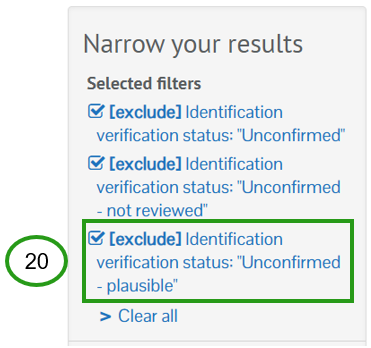
You can remove the filters from your search by clicking on the filters you want to remove (19) or (20)

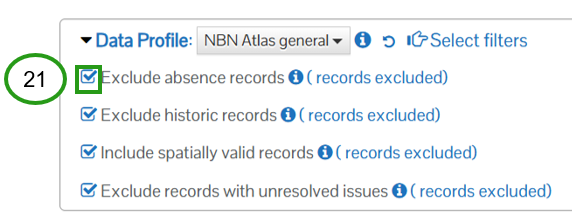
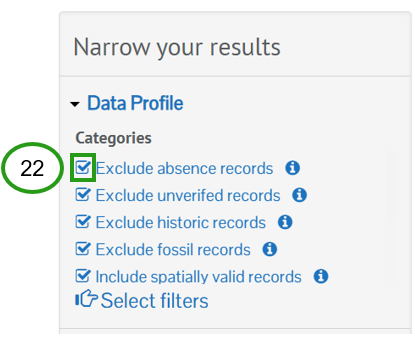
You can disable one or more filter categories included in a data profile, if none of the filters in a category suit your use case. To disable a filter category click on the check box icon next to the filter category name (21) or (22)
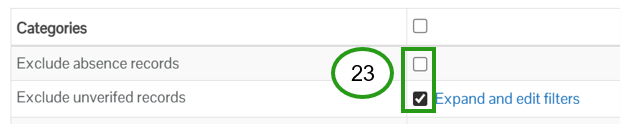
To disable multiple filter categories you can click on the Select filters links (13) or (14), deselect the filter categories you want to disable (23) and then click the Apply button (16).
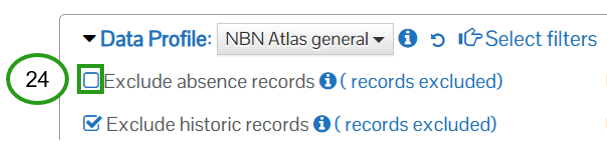
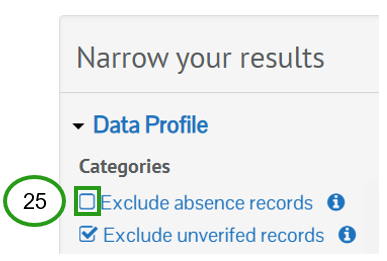
You can also re-enable a filter category by clicking on the check box for the category you want to re-enable (24) or (25) or via the Select filters links (13) or (14).
You can reset all edits and changes you have applied to the data profile by click on the undo icon (26)

If you have altered the data profile, e.g., disabled a filter category or individual filters included in a category, you can use the Saved Searches feature to save these alterations for future searches (see our Saved Searches page for further guidance).
You can also select another data profile to be the default data profile for all your searches on the NBN Atlas (note currently the data profile filters will not be applied when downloading records directly from the NBN Atlas Regions Portal or NBN Atlas Spatial Portal), via the data profile Settings (27)

You can also set the data profile details to be collapsed or expanded by default (6) and (7), for the current and future occurrence searches.
If you have any feedback on the data profiles, e.g., additional species lists which might be useful to include for the Invasive Species data profile, please email support@nbnatlas.org